
Key Highlights
- Custom Closing Settings for Filing Events in Blueprint (Web): We have implemented custom closing settings for filing events in Blueprint, enabling administrators to define event-specific closing messages and redirection behaviour, with a fallback to default Case-level settings when not configured.
- Enable End-User Editing of Generated Smart Documents (Post-Generation)( Web): We have implemented a generative AI–powered bulk action in import templates that automatically fills missing form data by extracting relevant information from Smart Documents, improving accuracy and efficiency in bulk filings.
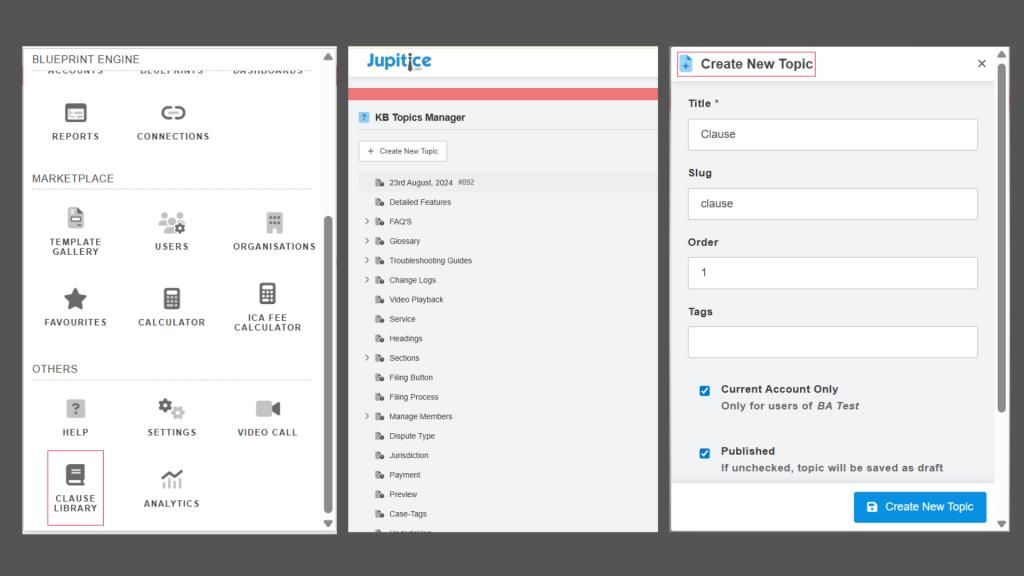
- Add Clause Library Module Based on KB Manager Functionality (Web): A new Clause Library module, based on the Knowledge Base Manager functionality, has been added to provide a centralized, permission-controlled repository for creating and managing contract clauses across the platform.
- Rendering Clause Library Next to Smart Document in Edit Mode (Web): We have enhanced Smart Document editing by rendering the Clause Library side-by-side in edit mode, allowing users to reference, copy, or drag-and-drop clauses while maintaining version history and controlling document updates.
- Video Recording Form Field: Direct In-Form Capture and Save (Web): The Video Recording form field type has been implemented to support direct in-form video capture, background processing with a progress indicator, automatic saving to the same field, and the ability to delete and re-record—eliminating the need for manual file uploads.
- Enable Editing of Smart Documents During Filing (Web): We have implemented inline viewing and editing of Smart Documents during filing, enabling controlled updates without regeneration.
- Version History Management for Smart Documents (Web): We have implemented edit version history for smart documents, enabling users to track, view, and access all document versions, along with detailed edit information, directly from the preview screen.
- Enable Custom Login & Signup Page Templates via Template Gallery (Web): We have implemented support for fully customizable Login and Signup page templates via the Template Gallery, with automatic fallback to the default layout if no valid external template is configured.
- Implement Card Widget with Blueprint-Based Placeholder Rendering (App): We have implemented a configurable Card Widget that uses blueprint-based placeholder mapping to dynamically render structured data in a flexible, reusable single-card layout.
- Widgets Rendering in List and Grid View (App): We have enhanced the application to support independent widget rendering in both List and Grid views, enabling flexible layouts, optimized performance, and seamless multi-widget interaction on a single screen.
- Case File Configuration in Blueprint to Enable “File Case” Functionality on Mobile (App): We have implemented the “File Case” functionality on mobile by enabling blueprint-based case file configuration to support seamless case creation and submission within the app.
- Implement Profile Contact Management (Email & Phone) (App): We have implemented Profile Contact Management, allowing users to add, delete, and set primary Email and Phone contacts, with platform login restricted to primary contact details only.
Custom Closing Settings for Filing Events in Blueprint (Web)
We have implemented custom closing settings for individual filing events in Blueprint, allowing administrators to configure event-specific closing messages and control where users are redirected after a filing is submitted. This enhancement provides a clearer and more guided post-filing experience. Administrators can now define a closing description that appears in the closing pop-up upon successful submission. In addition, they can customize the redirection button name and select the appropriate destination for users, including the Case Dashboard, Event Dashboard, or User Dashboard. These settings can be configured individually for each filing event to ensure that messaging and navigation align with the event’s intent. If an event-level configuration is not set, the system automatically applies the default case-level closing settings, maintaining consistency without requiring additional setup. With this implementation, blueprint offers greater flexibility and control to administrators, helping users transition smoothly after completing every filing.
Enable End-User Editing of Generated Smart Documents (Post-Generation) (Web)
We have implemented an enhancement that enables end users to make controlled edits to generated smart documents after generation, eliminating the need to return to the event consequence configuration and regenerate documents for minor changes. With this update, permitted users can edit static (non-placeholder) text directly within the smart document preview in filing and preview modes, using an ‘EDIT’ option available only in the smart document view (not PDF view). Placeholder-driven values remain non-editable to ensure data integrity. Users can save or discard their changes using the newly added ‘SAVE and CANCEL’ options at the end of the document, with no auto-save or draft behaviour. Editing is role-based and controlled through an editor’s drop-down in the event consequence configuration; only selected roles can edit, and if no role is configured, the document remains uneditable. Editing is allowed only before e-Sign completion, applies only to non-personalised smart documents with medium set to none, and all editors work on a single shared version without real-time collaboration. When in edit mode, the regenerate option is disabled, ensuring a clear and controlled document-editing experience while maintaining consistency and compliance.
Add Clause Library Module Based on KB Manager Functionality (Web)
We have implemented a new ‘Clause Library’ module that enables users to centrally create, manage, and maintain clauses for different types of contracts within the platform. Built on the same functionality as the existing ‘Knowledge Base Manager’, the clause library provides a familiar Knowledge Base–style interface for adding, editing, and organising clause content, while appearing to users as a dedicated module. Access and editing capabilities are controlled by user privileges, ensuring only authorised users can modify content. All existing Knowledge Base Manager features—such as manual text entry, structured tables, HTML input, image uploads, formatting options, and edit history—are fully supported. This enhancement allows users to efficiently store, manage, and reuse contract clauses in a centralized location, improving consistency, accessibility, and contract management efficiency across the platform.
Rendering Clause Library Next to Smart document in Edit Mode (Web)
We have implemented an enhancement to the Smart Document editing experience that enables the ‘Clause Library’ to render alongside the ‘Smart Document’ in Edit mode, providing users with immediate access to preconfigured clauses while modifying document content. When a user opens the Smart Document Preview and selects Edit, the Clause Library—if enabled in Account Settings—automatically appears on the right-hand side of the document in a side-by-side layout, while the document transitions from view mode to edit mode and the ‘Regenerate’ option is disabled. This layout allows authorized users to reference, copy and paste, or drag and drop clauses directly from the Clause Library into the Smart Document, making it easier to verify clause selection, placement, and accuracy during editing. The Clause Library will be displayed even if no clauses have been added yet, clearly indicating an empty state when applicable. In view-only mode, the Smart Document continues to display normally without the Clause Library. Once edits are completed and saved, the document is stored as an updated version with edit and version history maintained, ensuring traceability and controlled document updates while enhancing efficiency and consistency during document editing.
Video Recording Form Field: Direct In-Form Capture and Save (Web)
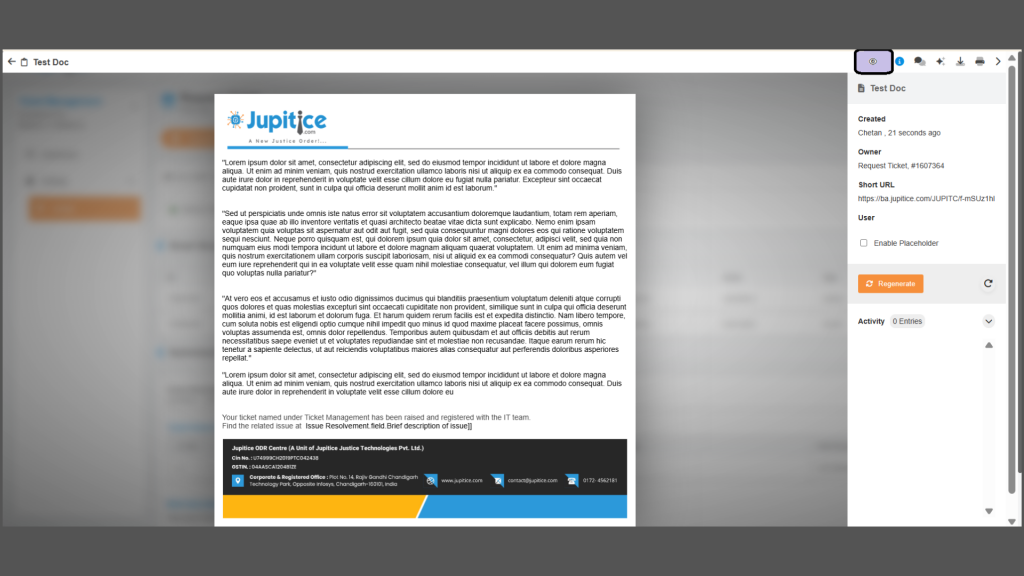
A new ‘Video Recording’ form field type has been implemented to enable direct capture and storage of video recordings within a form field, eliminating the need for manual file uploads. When a field is configured as ‘Video Recording‘, selecting the field initiates real-time video capture through an in-form preview interface with Start, Pause, Cancel, and Finish controls. Recording begins upon selecting Start, may be paused and resumed as needed, or cancelled to discard the recording and return to the form without saving. Upon selecting Finish, the system processes the video in the background while displaying a front-end progress indicator. Once processing is complete, the recorded video is automatically saved to the same form field, functioning in the same manner as an uploaded document and remaining fully associated with the field. The saved video may also be deleted to allow a new recording, providing a streamlined and professional in-form video capture experience.
Enable Editing of Smart Documents During Filing (Web)
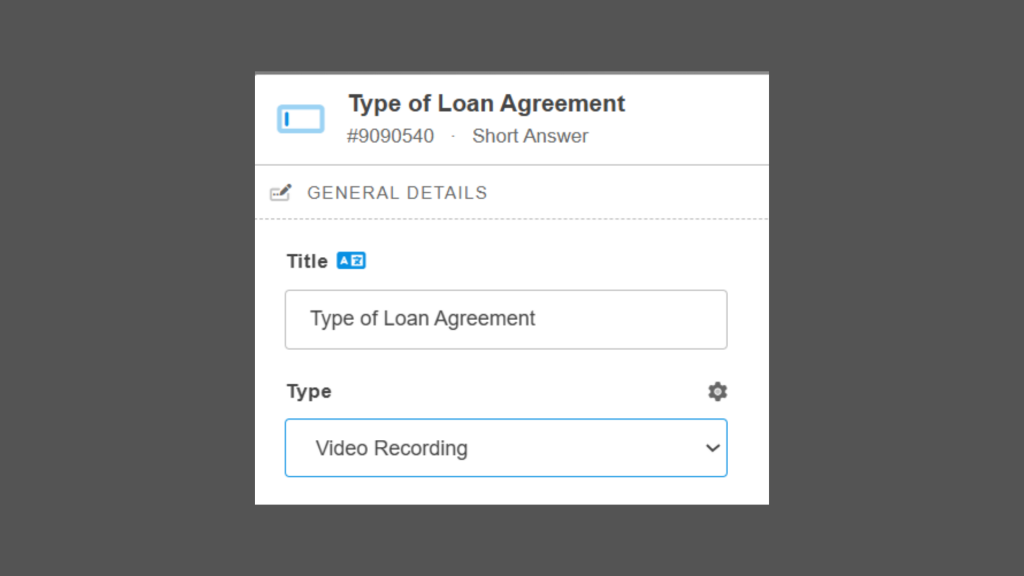
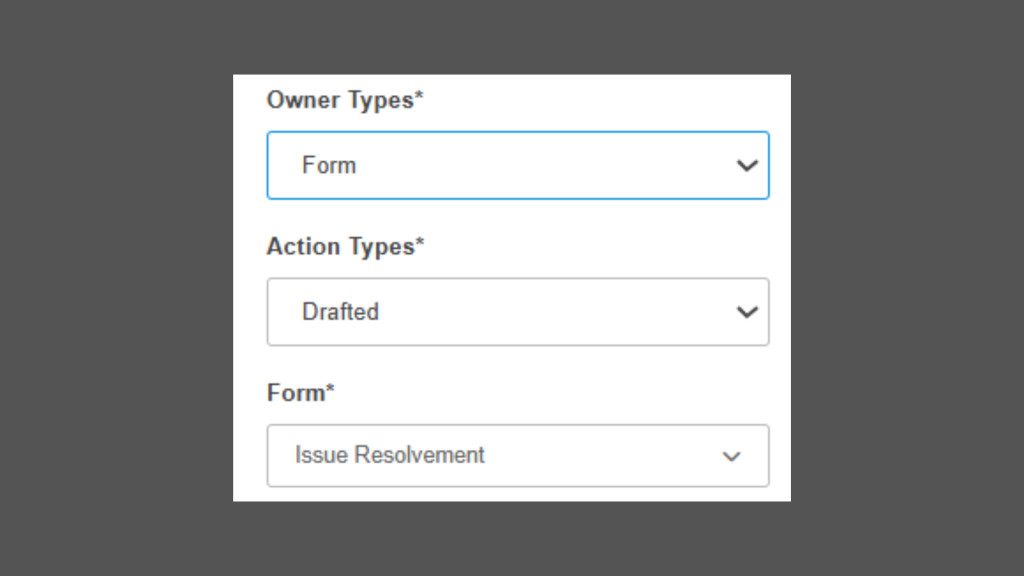
An enhancement has been introduced to enable controlled editing of smart documents during the filing process, addressing the existing limitation where any content modification required users to return to the event consequence configuration and regenerate the document. With this improvement, generated smart documents can now be viewed directly within the filing when configured under the section type smart document, with access available for configurations set to owner type forms and action type drafted. Users can view or edit the document, and when they select Edit, inline editing is enabled at specific filing locations, allowing modifications to static text such as clauses, paragraphs, or sentences while restricting edits to placeholder values. The clause library rendering in edit mode mirrors the functionality in preview mode, ensuring consistency in document structure and formatting. This enhancement streamlines the document preparation workflow by allowing controlled, in-place edits directly on generated smart documents without requiring regeneration.
Version History Management for Smart Documents (Web)
An enhancement has been implemented to support ‘Edit Version History’ for ‘Smart Documents’ configured for editing, providing greater transparency and control over document changes. Smart Documents that have been manually modified display an “Edited” banner for clear visual identification, along with an edit history icon located in the top-right corner of the document preview. Selecting this icon opens a dedicated version history view that lists all edited versions with details, including the date of modification and the user who made the change, allowing easy traceability. Users can select any version to view previously edited content, with all versions accessible from a right-side panel. For Smart Documents that have not been edited, or where editing access is not enabled in the configuration, the version history view is still available and clearly indicates that no edits have been made or that the document is non-editable. This enhancement ensures consistent version tracking and improves auditability and usability during document review and filing.

Enable Custom Login & Signup Page Templates via Template Gallery (Web)
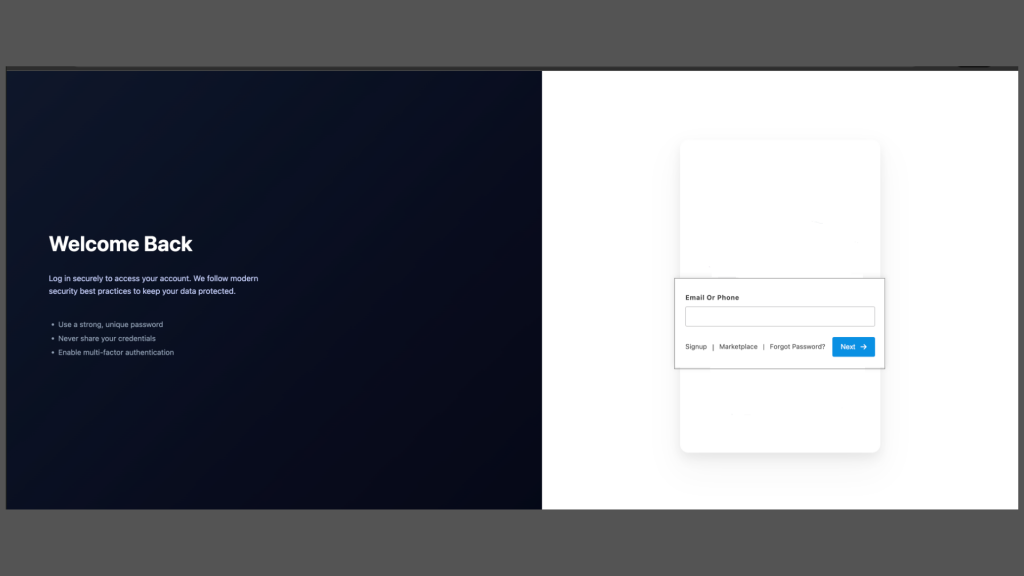
We have implemented support for custom HTML templates for the Login and Signup pages. The system has been enhanced to evaluate specific account-level settings to determine whether an external template should be applied. When a valid external HTML template is configured, the application dynamically retrieves and renders the template, replacing the [[login_form]] or [[signup_form]] placeholders with the appropriate form containers at runtime. This enhancement enables full layout customization while preserving core authentication functionality. If no external template is defined, or if the template retrieval process fails, the system gracefully falls back to the default layout to ensure an uninterrupted and consistent user experience.
Implement Card Widget with Blueprint-Based Placeholder Rendering (App)
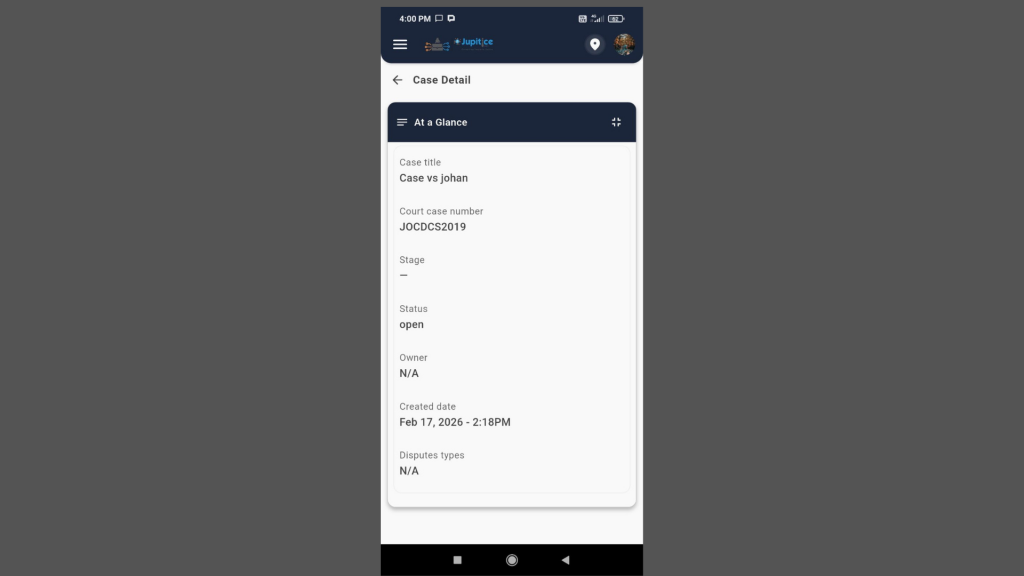
We have implemented a configurable Card Widget that renders structured data in a single-card layout using blueprint-driven placeholder mapping. This enhancement introduces a flexible and scalable approach to UI rendering by separating layout configuration from runtime data. The widget leverages a predefined blueprint configuration that defines the card structure, styling attributes, and placeholder keys. At runtime, these placeholder keys are dynamically mapped to the corresponding data fields, ensuring accurate and context-aware content rendering. This approach enables seamless adaptability across different datasets without requiring structural code changes. This implementation enhances reusability, promotes configuration-driven UI development, and provides greater flexibility in presenting dynamic data within a unified card-based interface.
Widgets Rendering in List and Grid View (App)
We have enhanced the application by introducing advanced widget rendering capabilities that support both List View and Grid View layouts. This implementation allows multiple widgets to be displayed within a single screen, with each widget operating independently to ensure reliability, scalability, and optimal performance. The single-screen multiple widget architecture enables users to interact with several widgets simultaneously without performance degradation. Each widget functions autonomously, ensuring that actions, data loading, or updates within one widget do not affect the behaviour or responsiveness of others.
The solution offers two configurable viewing modes:
- List View presents widgets in a structured, sequential format. In this mode, data is loaded only upon user interaction (on click). This on-demand loading mechanism minimises initial load time, optimizes system resource utilization, and enhances overall application performance—particularly in data-intensive scenarios.
- Grid View provides a more visual and consolidated layout, where widgets are arranged in a grid structure. In this mode, all widgets automatically render and load their respective data upon screen initialization. This ensures immediate visibility of key information, enabling quicker insights and more efficient decision-making.
By offering flexible viewing options combined with independent widget functionality, this enhancement significantly improves the user experience while maintaining performance efficiency and system stability.

Case File Configuration in Blueprint to Enable “File Case” Functionality on Mobile (App)
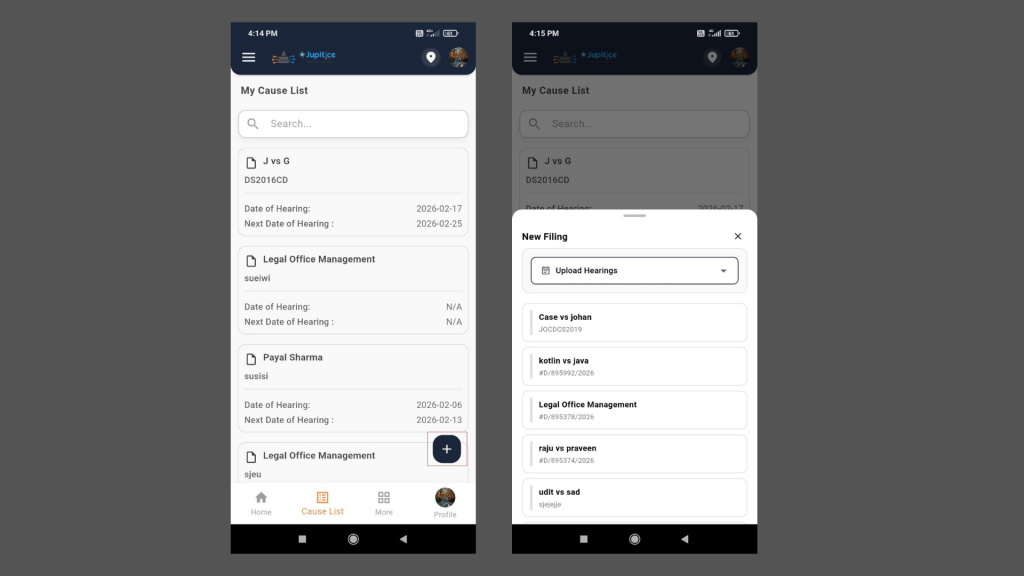
We have implemented the “File Case” button within the mobile application. The Case File Blueprint must be properly configured to support mobile filing capabilities. This configuration ensures that mobile users can seamlessly initiate and submit case files directly from the application interface. The setup involves incorporating the necessary filing parameters and filter configurations within the Blueprint. These configurations define the required fields, validation rules, and criteria governing case creation and submission. Proper alignment of these elements ensures consistency with system requirements while maintaining data integrity and compliance standards. Once the Blueprint is configured with the appropriate filing and filtering settings, the “File Case” functionality becomes accessible on mobile devices, allowing users to efficiently create, review, and submit case files without dependency on desktop access. This enhancement strengthens mobile accessibility, improves operational efficiency, and ensures a streamlined case management experience across platforms.
Implement Profile Contact Management (Email & Phone) (App)
We have implemented ‘Profile Contact Management’ within the Profile Module to enable users to manage their Email and Phone details efficiently. The Profile Contact model includes Email and Phone as child entities, allowing users to add, delete, and designate a contact as Primary through the UI. Supporting backend logic ensures proper handling of add, delete, and primary selection actions while maintaining data integrity. To enhance security, login authentication is restricted strictly to the designated primary email and primary phone number. Non-primary contact details are not permitted for platform login. This implementation ensures controlled access, improved account management flexibility, and alignment with authentication standards, while meeting the acceptance criteria that users can successfully add and delete email and phone entries.