
Key Highlights
- Authenticating User Based On Hearing Room URL: We’ve added OTP-based authentication for the ‘Hearing Room URL‘ to ensure only verified, registered users can securely access hearing proceedings.
- Participant Authentication Before Joining the Hearing Room: We’ve implemented ‘Participant Authentication‘ via OTP prior to Hearing Room entry to strengthen security, accountability, and trust.
- Hearing Room Pre-Join Authentication Configuration: We’ve introduced a new ‘Pre-Join Authentication‘ setting that allows account owners to enable or disable authentication before joining a hearing, offering flexible security controls directly from the ‘Setting Builder’.
- Added User Profile Review Section: We’ve introduced a ‘User Profile Review‘ section that enables user-to-user reviews with ratings, controlled editing, moderation support, and clear visibility—promoting transparent, structured, and meaningful feedback across the platform.
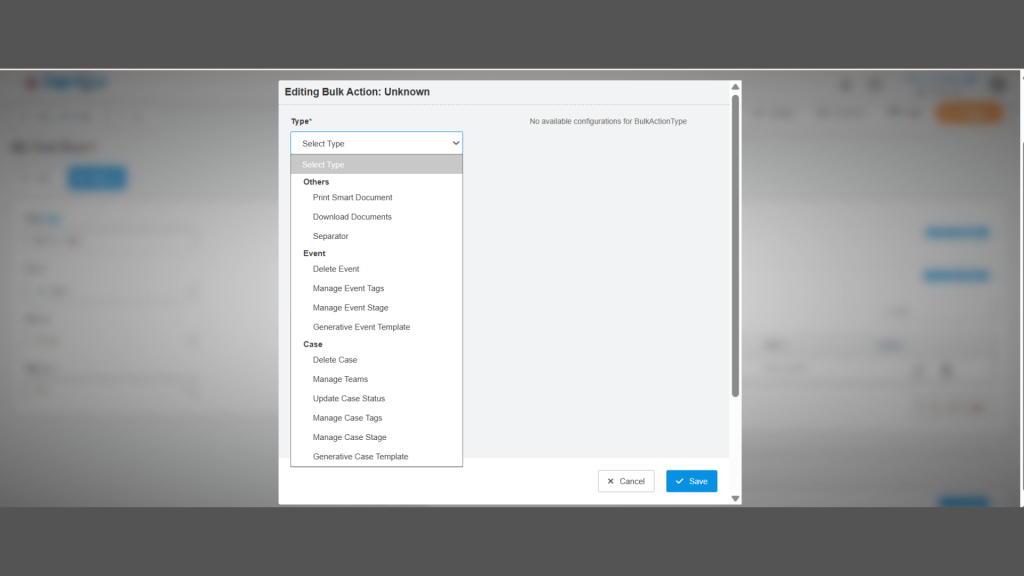
- New Feature Update: Bulk Actions & Enhanced Case Editing: We’ve implemented powerful ‘Bulk Actions‘ for cases and events, along with an enhanced case-edit form, to help teams save time, maintain consistency, and manage workflows more efficiently.
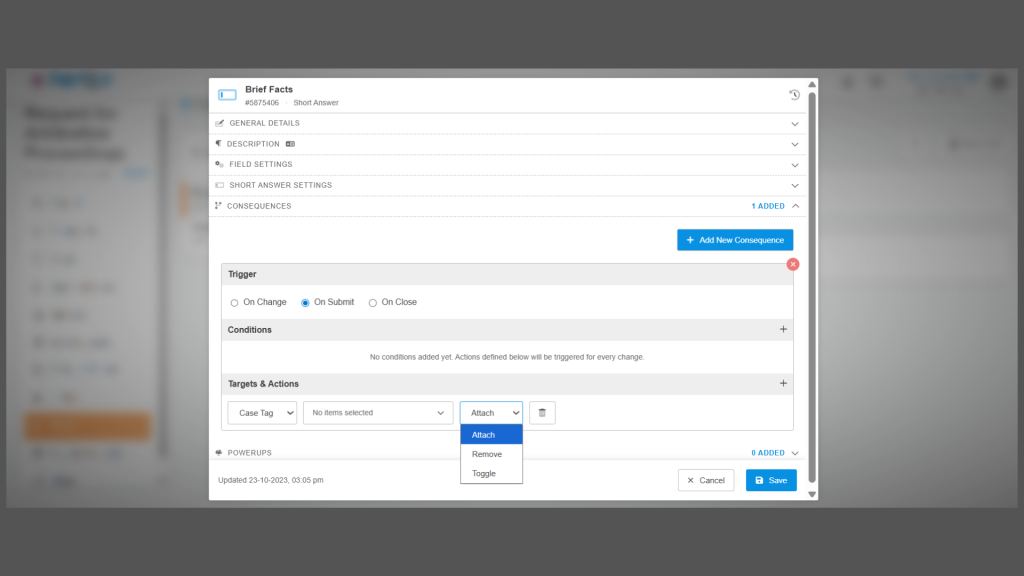
- Consequences New “Target and Action” Dropdown Values: Case Tag and Event Tag: We’ve introduced ‘Case Tags‘ and ‘Event Tags‘ as new options in the ‘Target and Action‘ dropdowns within form consequences, enabling the automatic attachment, removal, or toggling of relevant tags upon form submission.
- Settings In Setting Builder For Platform Lockout After Failed Login Attempts: We’ve implemented a configurable ‘Platform Lockout‘ setting in the ‘Setting Builder‘ that allows administrators to define failed login thresholds and lockout durations to strengthen account security while maintaining operational flexibility.
- Bulk Actions Added In List View: We’ve enhanced the ‘List View‘ with robust bulk action support and detailed job tracking, enabling users to efficiently manage high-volume operations with complete visibility, reliability, and auditability.
Authenticating User-Based On Hearing Room URL
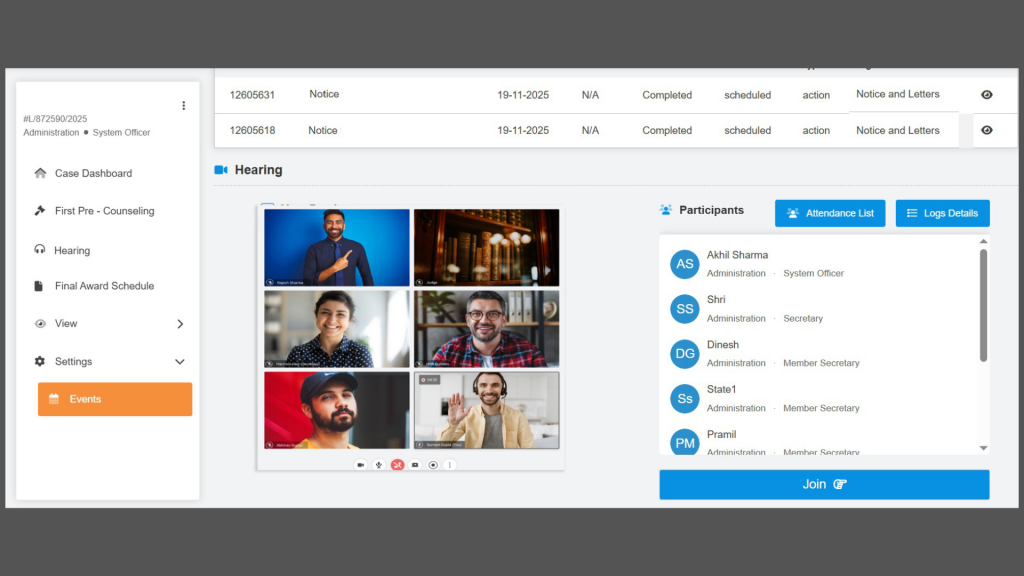
We’ve implemented secure ‘User Authentication‘ for ‘Hearing Room‘ access when users join via a shared URL, ensuring only authorised participants can access the proceedings. When a registered user clicks the hearing room link, the platform prompts an OTP-based verification flow, requiring them to enter their registered phone number or email ID. Once the system validates the user’s registration details, an OTP is generated and sent to the verified contact information. Upon successful OTP verification, the user is authenticated and granted access to the hearing room. In contrast, failed verification attempts prevent entry and redirect the user back to the hearing room joining screen. This enhancement strengthens access control, protects sensitive proceedings, and ensures a secure and compliant hearing experience.
Participant Authentication Before Joining the Hearing Room
We’ve strengthened the ‘Hearing Room‘ security by introducing mandatory ‘Participant Authentication‘ before joining any hearing session. When a participant clicks the Join button, an OTP verification pop-up appears, displaying their primary registered mobile number and prompting them to authenticate. By selecting Generate OTP, an OTP is sent to the participant’s registered number, which must be entered and verified to proceed. Successful verification confirms the participant’s identity and grants access to the Hearing Room, while failed attempts display an appropriate error message and redirect the user to the Waiting Room to retry. This enhancement ensures that only verified participants can enter hearing proceedings, reinforcing security, accountability, and trust across the platform.
Hearing Room Pre-Join Authentication Configuration
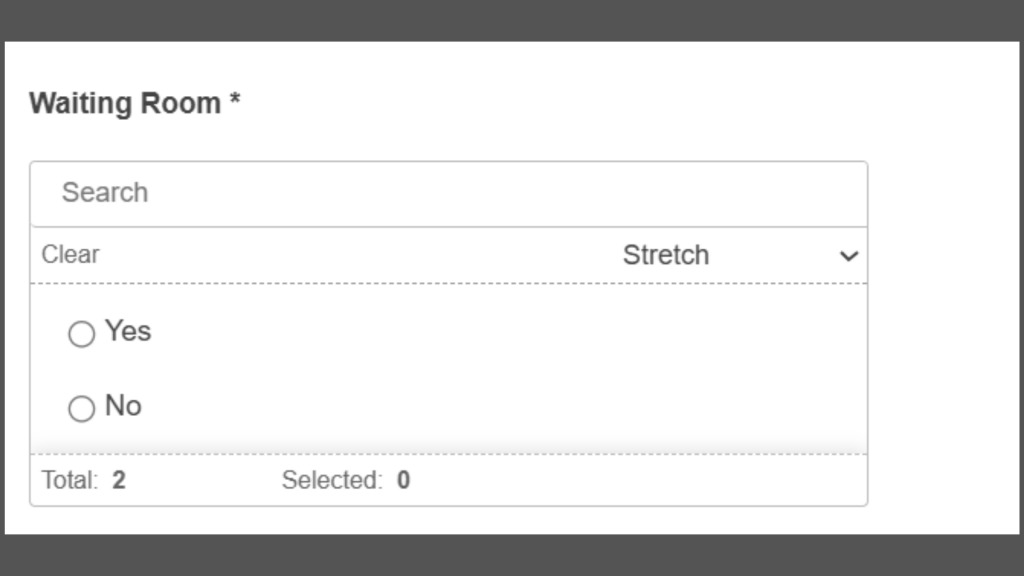
We’ve introduced a ‘Hearing Room Pre-Join Authentication Configuration‘ that gives account owners greater control over access to hearing rooms. With this update, users can enable or disable authentication before joining a hearing through a simple setting called ‘Require Authentication Before Joining.’ Available in the Setting Builder within Account Manager, this single-select option allows teams to adapt security requirements based on their needs. When set to Yes, participants will be prompted to authenticate before entering the hearing room, adding an extra layer of protection. When set to No (the default state), the hearing experience remains unchanged. Designed to align seamlessly with existing hearing settings and UI patterns, this enhancement offers flexible, on-demand security without disrupting established workflows.
Added User Profile Review Section
We’ve added a ‘User Profile Review Section‘ to promote transparency and meaningful feedback within the platform. Users can now review other users, and reviewed users can respond—encouraging constructive, two-way interaction. Each profile displays an average rating at the top, giving a quick snapshot of user feedback. To maintain fairness, users cannot review their own submissions, and reviewers may edit or delete their reviews within two hours of posting. Other users can express agreement or disagreement by rating reviews with a thumbs-up or thumbs-down; total ratings are visible to everyone. For moderation and control, users with user manager privileges can delete reviews at any time. Reviews are displayed with a 10-item pagination, and additional reviews can be loaded on demand. To keep discussions clear and focused, replying to a reply is not supported.
New Feature Update: Bulk Actions & Enhanced Case Editing
We’ve implemented new ‘Bulk Actions‘ functionalities to enhance the management of cases and events, facilitating a more rapid and efficient process. Users can now execute updates across multiple records simultaneously, thereby minimizing repetitive tasks and promoting greater consistency in operations.
- Case tags: Quickly add or update tags across multiple cases to improve search ability.
- Event tags: Apply consistent tagging to multiple events at once for easier tracking and filtering.
- Case stages: Update multiple cases’ stages simultaneously to reflect progress more efficiently.
- Event stages: Change stages for multiple events in a single action, keeping workflows aligned and up to date.
Furthermore, the ‘Case Edit‘ form has been enhanced with several new fields, offering users greater flexibility and control when updating case details. These enhancements contribute to more accurate data capture and facilitate smoother workflows.
Consequences New “Target and Action” Dropdown Values: Case Tag and Event Tag
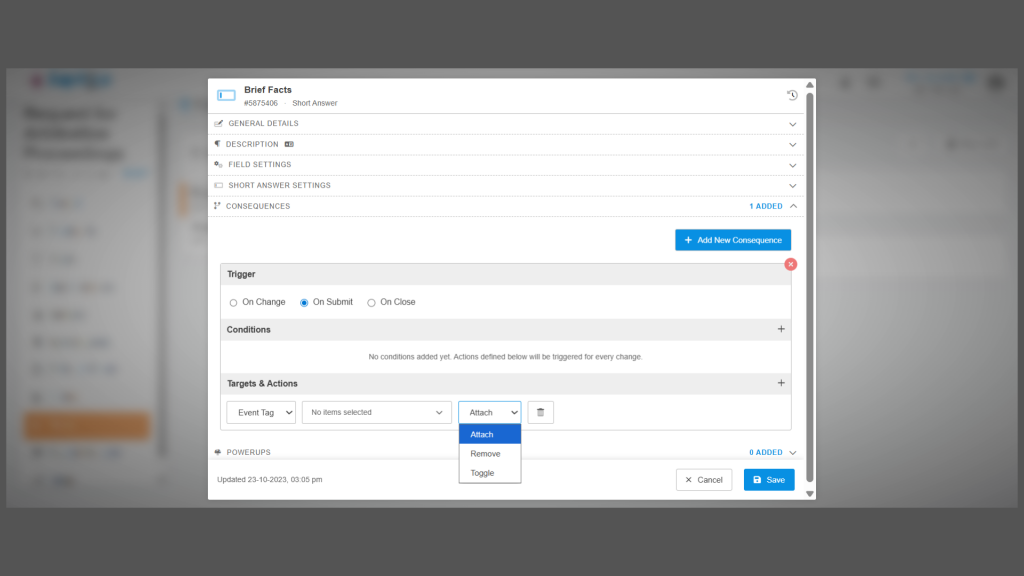
We’ve introduced ‘Case Tag‘ and ‘Event Tag‘ as new options in the ‘Target and Action‘ dropdowns to make tag management more flexible and automated during form submission. These options allow users to attach, remove, or toggle tags seamlessly based on form outcomes. When ‘Case Tag’ is selected, the adjacent dropdown displays all tag values created at the blueprint level. This field is mandatory and supports multi-selection. The Action dropdown provides three options: Remove, Attach, and Toggle. When ‘Event Tag‘ is selected, the adjacent dropdown displays all tag values created for the specific event in which the form field exists. This field is also mandatory and supports multi-selection, with the same three available actions: Remove, Attach, and Toggle. These consequences execute only when the trigger is set to “On Submit.”Upon the submission of the form, the specified action will be executed as follows: all selected tags will be removed from the case or event if they are currently present; all selected tags will be attached, disregarding any that are already in existence; and the toggle option will remove tags that are present while attaching those that are absent.
Settings In Setting Builder For Platform Lockout After Failed Login Attempts
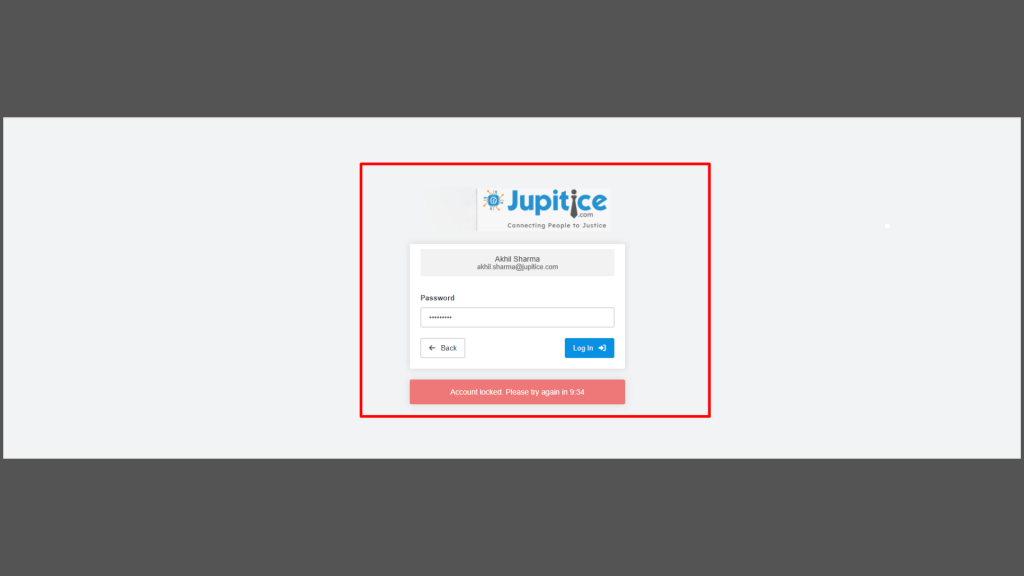
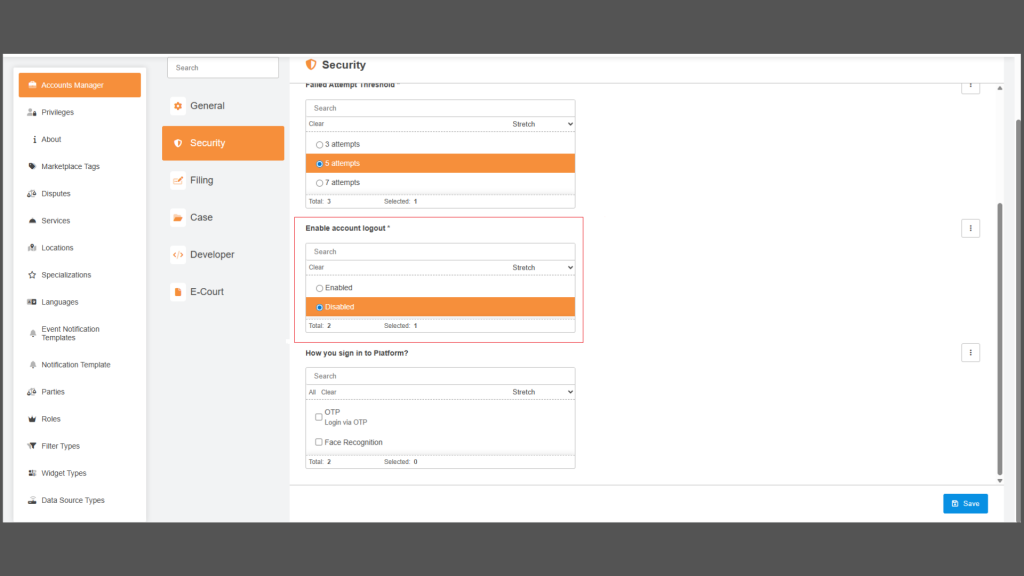
We’ve implemented a ‘Login Security Policy‘ within the ‘Settings Builder‘ that introduces a configurable ‘Platform Lockout‘ mechanism to enhance account security and mitigate risks associated with repeated failed login attempts. This feature enables administrators to configure both the failed login attempt threshold and the lockout (cooldown) duration as a unified, dynamic policy. When ‘Platform Lockout‘ is enabled, the system continuously monitors unsuccessful login attempts. It automatically locks the platform for a user once the defined threshold—such as 3 or 5 failed attempts—is reached. During the configured lockout period, for example, 5 or 10 minutes, all further login attempts are restricted. Upon completion of the cooldown duration, the platform is automatically unlocked, allowing the user to resume login attempts without requiring administrative intervention. When ‘Platform Lockout‘ is disabled, the system does not track failed login attempts, and the platform remains accessible regardless of how many incorrect credentials are entered. This approach provides the flexibility to align authentication controls with their specific security and operational requirements.
Bulk Actions Added In List View
We’ve implemented enhanced ‘Bulk Actions‘ in the ‘List View‘ using a dedicated batch execution and tracking model that supports configurable operations, lifecycle monitoring, auditability, and safe processing of large datasets.
- Bulk Action In List View
- Supports bulk operations such as printing, updating, deleting, and separating records.
- Reduces repetitive effort and improves overall workflow efficiency.
- Bulk Action Jobs Visibility
- Introduced a bulk action jobs sub-feature within the notice & letters dashboard.
- Provides a centralized view to track, sort, and review all bulk action jobs.
- Batch-Based Processing
- Each bulk action is handled as a single batch operation.
- Assigned a unique identifier for independent tracking.
- Associated with the correct account and widget/module for contextual execution.
- Configurable & Flexible Targeting
- Supports action types such as update, delete, export, and status change.
- Allows actions to be applied using filters or a select-all option.
- Stores all required configuration and payload data for traceability.
- Execution Lifecycle & Monitoring
- Follows a defined lifecycle from pending to completed.
- Tracks total targeted records and successfully processed records.
- Provides execution progress and post-completion summaries.
- Records completion timestamps for reporting and audits.
- Data Safety
- Implements soft deletion to prevent permanent data loss.
- Enables recovery and audit review when required.
- Audit & Compliance
- Captures complete audit information, including:
- Creation and update timestamps.
- User details for action initiation and modification.
- Ensures transparency, traceability, and compliance at scale.
- Captures complete audit information, including: