Key Highlights
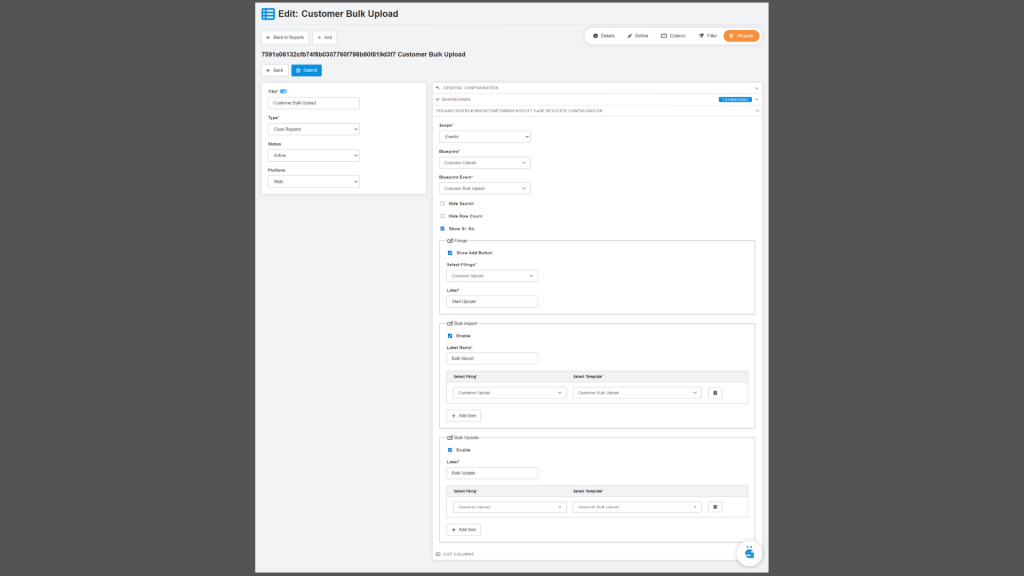
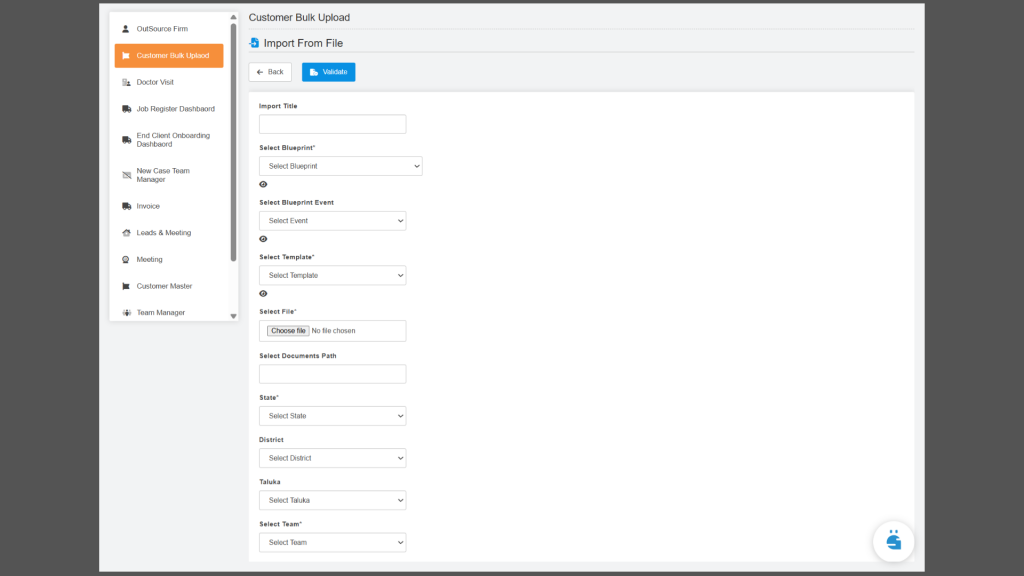
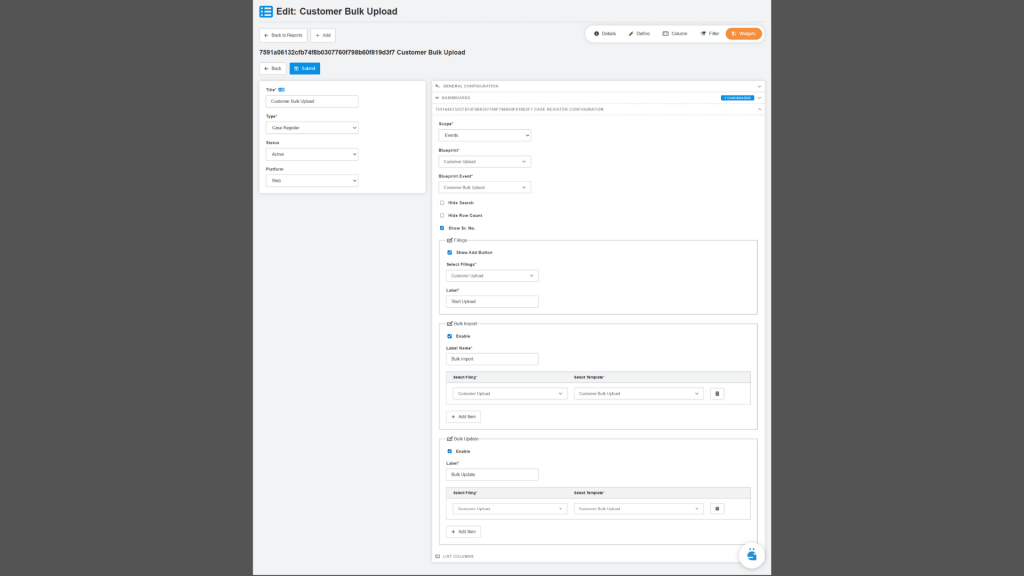
- Bulk Upload: New UI and Business Logic: We have implemented the Bulk Upload feature, which enables users to efficiently import multiple Cases or Events through a guided UI that supports file upload, validation, review, and submission of Excel data in a single streamlined workflow.
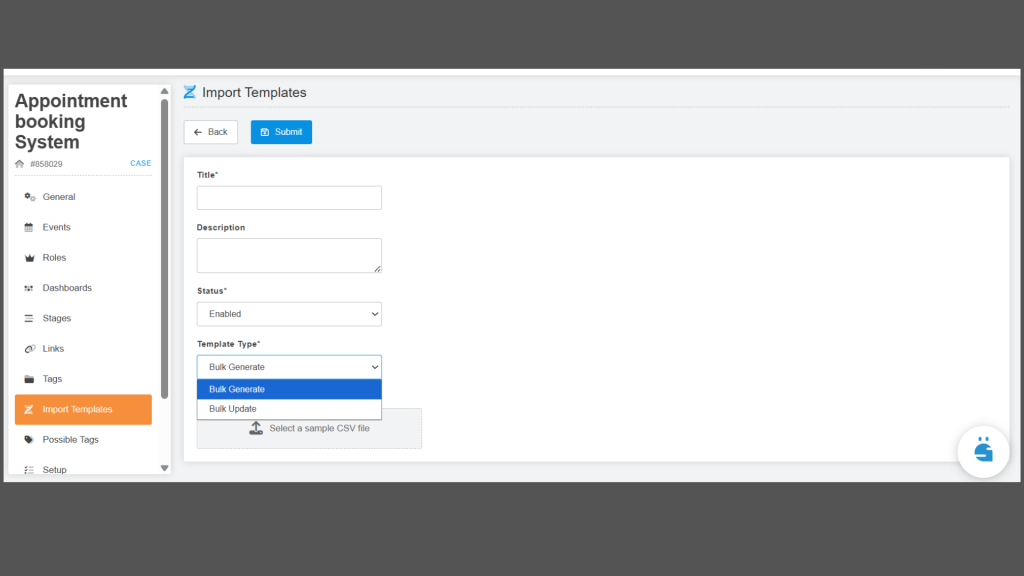
- Import Template : Configuration: A mandatory Template Type field has been added to Import Template with Bulk Generate and Bulk Update options, and when Bulk Update is selected, a required Action field (Override, Append, Remove) controls how Excel data updates existing records without impacting current functionality.
- Case Stage and Event Stage Dropdowns – Configuration: The New Case Stage and Event Stage dropdowns have been added next to Event Start and End Times, enabling automatic, independent stage transitions for Cases and Events while preserving existing behaviour when no selections are made.
- Jitsi Video Call Implementation in Mobile: We’ve added the Jitsi Video Call support to the Flutter mobile app, enabling users to join meetings via ID or URL with a seamless, tested experience across Android and iOS.
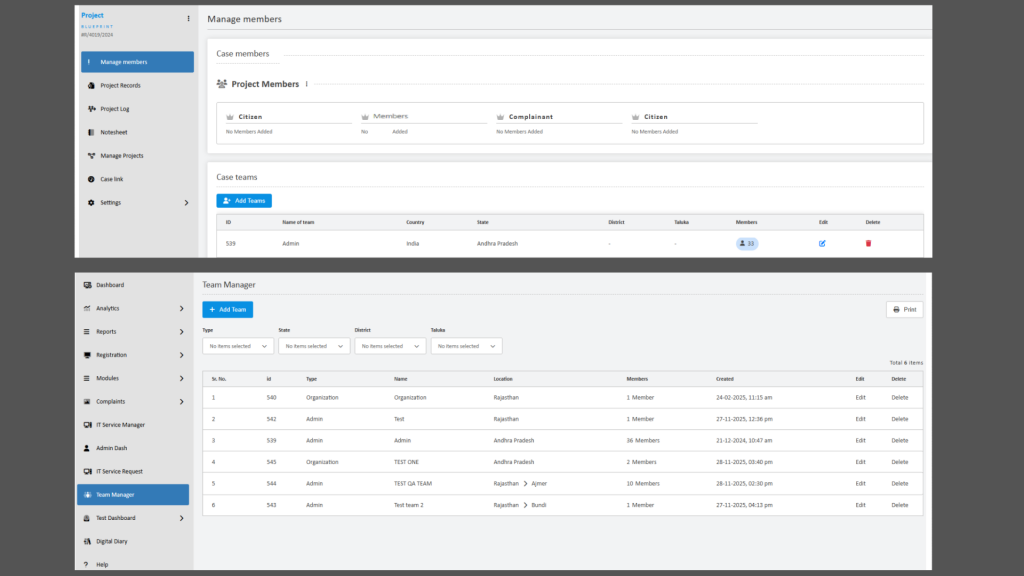
- Allow team members into teams with different locations: We have enhanced Team Management to allow users from any location to join any team, with case access determined by team membership rather than geographic location.
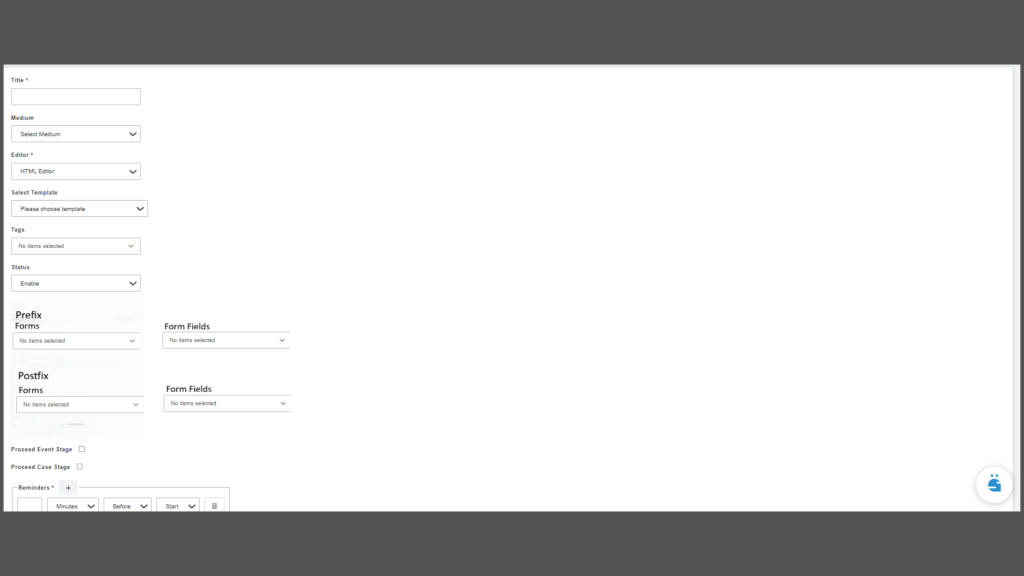
- Embed Uploaded Files in Smart Documents via Event Consequences: We have enhanced Event Consequences to embed uploaded files directly into Smart Documents, allowing precise placement at the beginning or end for a complete, compliant document.
Bulk Upload: New UI and Business Logic
We have implemented the new Bulk Upload configuration that allows users to create or upload multiple Cases or Events at once, significantly reducing manual effort and errors. When Bulk Import is enabled in the List View Configuration, an “Enable Bulk Import” option appears in the widget’s three-dot menu. Upon selecting this option, a pop-up prompts the user to choose a Filing (this step applies only when multiple filings are configured). After choosing the filing, the user is presented with a form that includes a mandatory Upload File field, an optional Select File Path field (applicable for file uploads), and a Description field, along with Go Back and Validate action buttons. Clicking Validate triggers the system to read the uploaded Excel file and display all records under their respective mapped columns on the Validation Screen. This screen includes a top section with Back, Re-Validate, and Submit buttons. Below these buttons, the system displays the File Name, File Size, and Description in a single combined paragraph; lengthy descriptions are truncated and expandable via a “Show More” link.
Import Template: Configuration
We have implemented a mandatory Template Type field in the Import Template. This field provides two single-select options: Bulk Generate and Bulk Update; existing functionality remains unchanged. When Bulk Update is selected, a mandatory Action field becomes available under Rules, located below the Placeholder Engine. The Action field offers three single-select options: Override, Append, and Remove. Selecting Override clears all existing data and replaces it with the values provided in the Excel file; if no data is present in the file, existing values are cleared and set to null. The Append option adds new values without affecting existing data, while the Remove option deletes only the values specified in the Excel file, leaving all other existing data intact.
Case Stage and Event Stage Dropdowns – Configuration
We have added two new dropdown fields, Case Stage and Event Stage, next to both the Start Time and End Time fields within an Event. The Case Stage dropdown displays all stages configured for a Case, while the Event Stage dropdown displays all stages configured for an Event. These options allow users to define how the Case and Event stages should automatically transition at the start and/or end of an event. If no values are selected in either dropdown, the system continues to function as before, with no automatic stage updates. When an Event Stage is selected, the Event transitions to the chosen stage at the specified Start Time or End Time. When a Case Stage is selected, the Case transitions to the chosen stage at the event’s Start Time or End Time. If values are selected in both dropdowns, the Case and Event stages are updated independently based on the respective selections at Start Time and End Time.
Jitsi Video Call Implementation in Mobile
We’ve added the Jitsi Video Call support to the Flutter mobile application, allowing users to seamlessly join existing Jitsi meetings directly from the app using a meeting ID or URL. This enhancement includes integration of the Jitsi Meet Flutter SDK, configuration of required Android and iOS permissions, a simple UI for entering meeting details and joining calls, and handling of key meeting events such as join, leave, and error states. The complete meeting join flow has been tested on both platforms to ensure a smooth and reliable video calling experience.
Allow team members into teams with different locations
We have enhanced the Team Management feature by removing location-based restrictions, enabling greater flexibility and cross-location collaboration. Previously, team configuration was limited to the user’s location, allowing only users from the same geographic area to be added to a team and restricting case visibility to location-specific cases. For instance, a team created for Mumbai could include only Mumbai-based users and access only Mumbai-related cases. With this enhancement, users can now be added to any team regardless of their assigned location, and once part of a team, they can access all cases assigned to that team. Case visibility is now governed solely by team membership rather than geographic location, facilitating more efficient collaboration and streamlined case management across distributed teams.
Embed Uploaded Files in Smart Documents via Event Consequences
We have introduced an enhancement to Event Consequences that enables files uploaded via form fields to be embedded directly into Smart Documents, creating a single, complete document output. Previously, Smart Documents could only reference uploaded files via placeholders as links, which was insufficient for use cases such as e-stamps that must be physically embedded in the document and vary per case. With this update, users can upload a file (PDF, Word, image, etc.) in a form field and map that field within Event Consequences using newly added drop-downs that list only file-upload–type fields. Users can choose to insert the uploaded file at thebeginning (prefix) or end (postfix) of the Smart Document—or both—allowing flexible document composition. During document generation, the system automatically merges the uploaded file(s) with the generated Smart Document into a single output, ensuring the e-stamp or supporting document appears exactly where required. This enhancement improves document completeness, eliminates reliance on links, and streamlines compliance-driven workflows.